Videos, images and audio
Which formats it opens, how it plays any video, the backgrounds that come with it, and how to handle volume and background music.
You'll find them in Media › Videos, Images and Audio.
Add files
- Click the + at the bottom left (Add) or drag files onto the grid. Each one goes to the tab for its type, and the app tells you if a format isn't supported. The file picker opens in the folder you set for that tab in Settings › System › File folders.
- Link folder (the folder icon with a +, to the right of the search box) shows the contents of a folder on your computer in the tab where you linked it. Only files of that type show up, and subfolders aren't included.
- On a new install, each tab already has the matching computer folder linked, if it exists: the videos folder in Videos, the pictures folder in Images, the music folder in Audio and the documents folder in Presentations. On macOS, the system asks permission for Himnova Live to read each one the first time you open it. Updating an existing install doesn't link anything.
- Once a folder is linked, a list appears to the left of the search box where you choose the Library (every file you've added) or one of the folders. A folder is re-read when you open it, when you switch back to the app, or when you click Refresh folder at the bottom left, so anything you copied into it shows up. With a folder selected, Unlink folder removes it from the list without deleting any files.
- A folder view has no + or ✕. You manage its files in File Explorer or Finder.
- Above the grid you can Sort and Search by name…. The default sort is Name (A → Z), and each tab remembers its own. Newest first puts the files you added to the Library most recently at the top. In a folder, it goes by the file's date.
The library keeps track of where your files are; it doesn't make copies. Removing something from the library (Remove, the ✕ at the bottom, or Delete) never deletes it from your disk, and you have a few seconds to click Undo.
If a file is used in a saved schedule, as a background (for the logo, the verse, a theme or a scene) or as an overlay's image, the app doesn't remove it right away. It shows a message with Remove anyway, and that button doesn't remove anything yet: it opens a confirmation that lists where the file is used. It's removed only when you click Remove anyway in that confirmation, and it comes out of the saved schedules too. If it was a background, it stops showing there.
Included backgrounds
The library comes with eight soft-blur backgrounds in Images (“Night”, “Sunrise”, “Ocean”, “Dusk”, “Forest”, “Embers”, “Graphite” and “Sky”) and four motion backgrounds that loop seamlessly in Videos (“Night”, “Sunrise”, “Ocean” and “Dusk”). Their names stay in whatever language the app was in when they were added. They were made for Himnova Live and are free to use, just like the app, behind songs, verses or the logo, or on their own.
Any video, no codec hunting
Common formats (MP4, MOV, MKV, WebM, MP3, WAV, FLAC…) play as is. Anything that can't (AVI, WMV, WMA, ProRes, AC3…) plays right away through the app's built-in media engine. Nothing gets converted, and the original file is never touched.
| Type | Formats |
|---|---|
| Videos | MP4, M4V, MOV, MKV, WebM, 3GP, 3G2, AVI, WMV, ASF, FLV, F4V, MPG, MPEG, M2V, VOB, TS, MTS, M2TS, OGV, DivX, MXF and DV |
| Audio | MP3, WAV, OGG, OGA, M4A, FLAC, AAC, OPUS, WEBA, WMA, AIFF, AIF, AC3, MKA, MP2 and AMR |
| Images | JPG, PNG, GIF, WebP and BMP |
- The projector and the monitors show the same frame.
- On Linux, the formats the engine plays need libmpv. See Install on Linux.
A live video
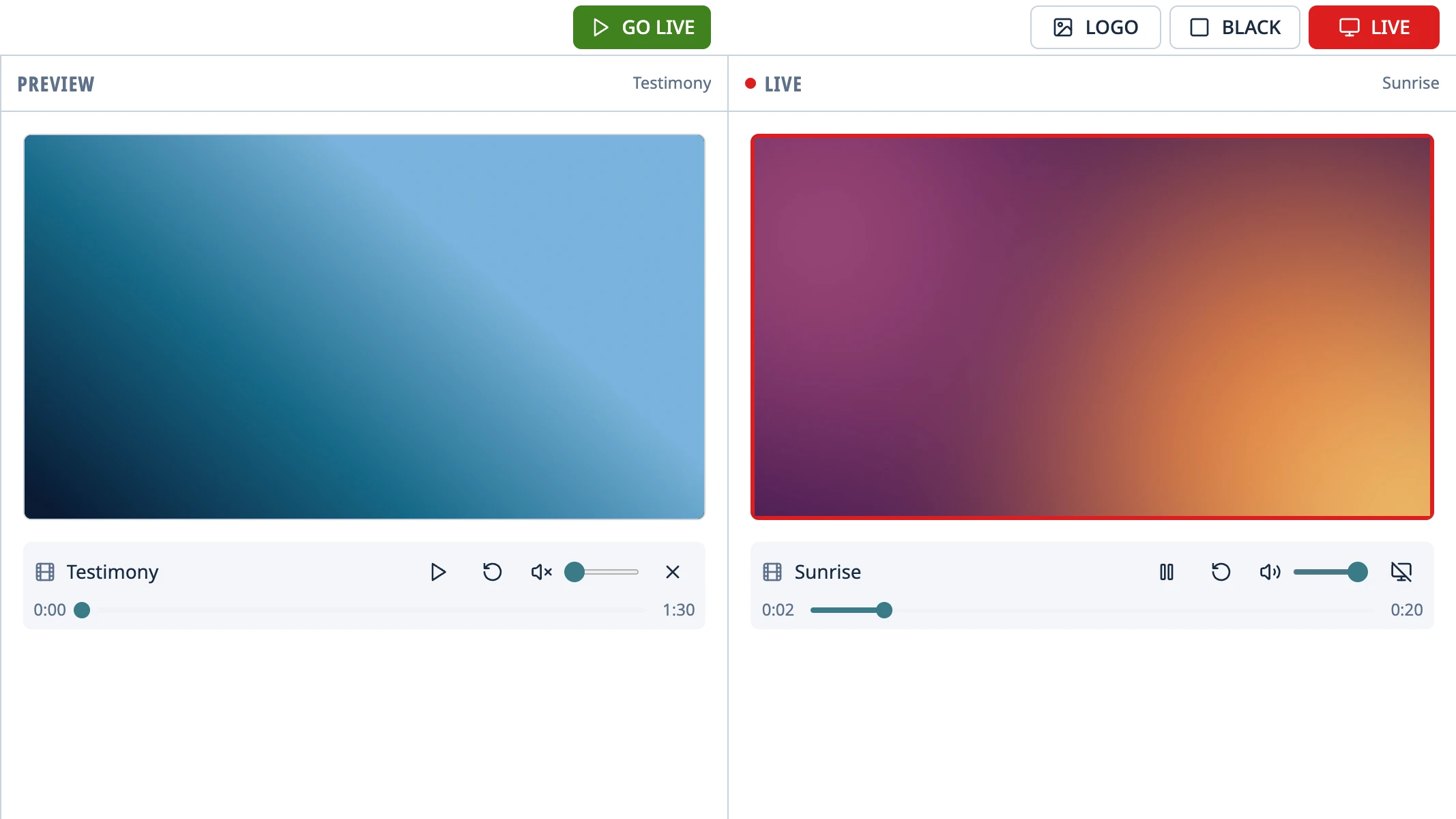
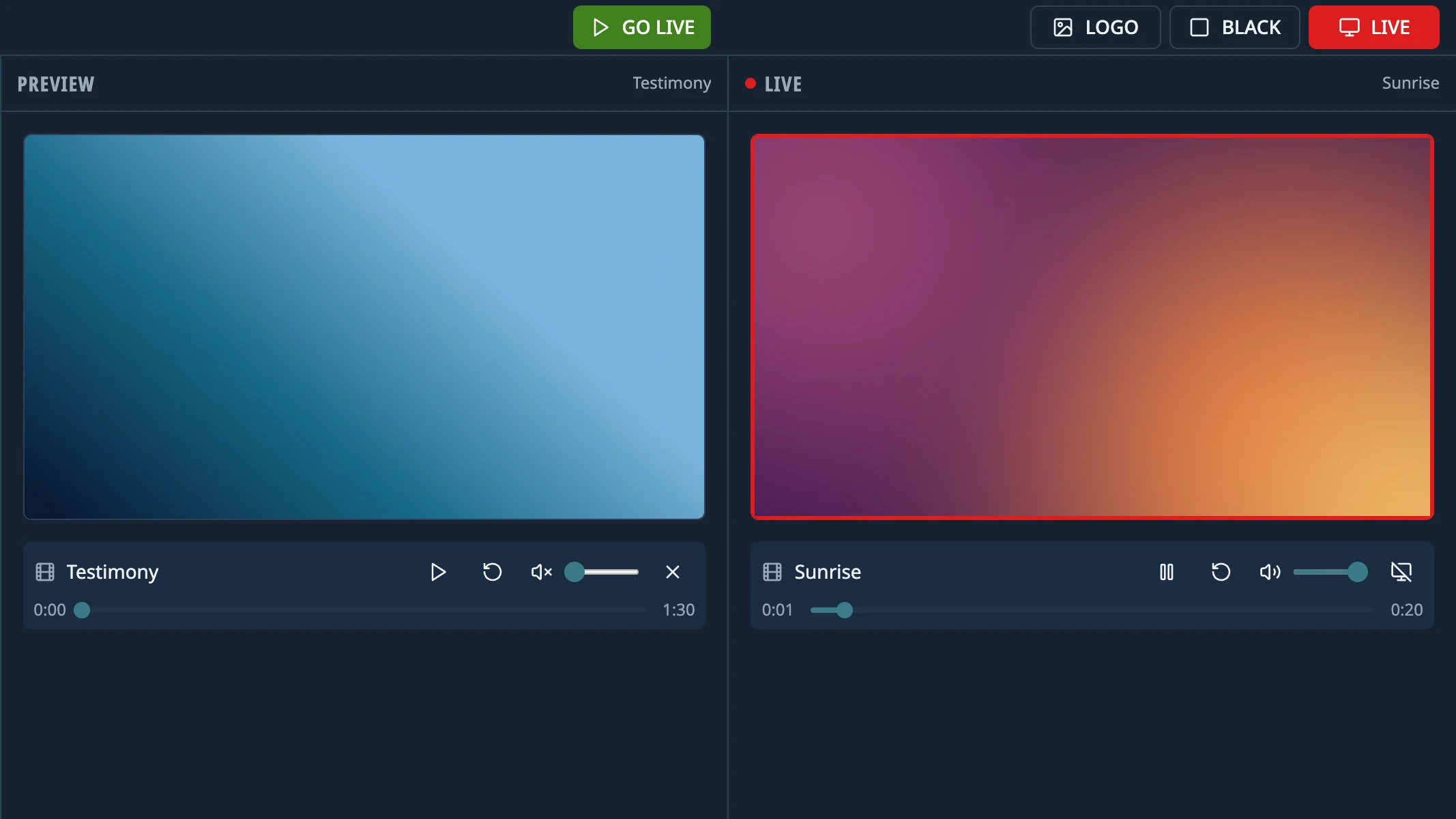
- It goes live from wherever you left its bar in Preview, or from the beginning if you didn't touch it.
- Under the Live monitor you have Pause, Play, Restart, a bar to skip forward or back, volume and Mute.
- In Preview, a video has its own volume, which starts at 0, so you can check it without interrupting what's playing.
- Every video starts at the Starting volume set in Settings › Projection (100% by default).
- BLACK and LOGO pause the video, and it picks up where it left off when you come back.
- When it ends, it goes off air and the logo shows. When a video ends, in Settings › Projection, changes that: Black screen, Loop (seamless), Hold the last frame (Play starts it over) or Go to the next schedule item (if the video isn't in the schedule or is the last item, the logo shows).
Images
Images always show in full, never cropped, with black bars if their shape doesn't match the screen.
Audio and background music
- An audio file sent live only adds sound. It doesn't change the picture or take you out of BLACK or LOGO, and several can play at once. It starts at the Starting volume.
- It keeps playing when you change what's live, and during BLACK or LOGO.
- In Preview it has its own volume, which starts at 0, and you can use its bar to pick where it starts.
- Sending one that's already playing does nothing. Sending one that's paused resumes it.
- By default, when it ends it stops and its row disappears from Live. When an audio ends, in Settings › Projection, changes that: Loop, or Go to the next schedule audio to play the schedule's background music back to back (how).
- Stop it with Stop on its row in Live. If something is on the projector too, Take off air in Settings › Projection › Live content stops everything, music included.
Tip: Sound plays through the computer's audio output. To send it to the projector or the church's speakers, pick that output in your system's sound settings.
Something didn't work the way the guide says? Tell us on GitHub what you did, what you expected and what happened, and we'll see whether the app or the guide needs fixing. Report a problem (opens in a new tab)