Songs
Find, type or paste worship lyrics, set the song order and put it on screen. Each song keeps one text size, and keys jump to a verse or the chorus.
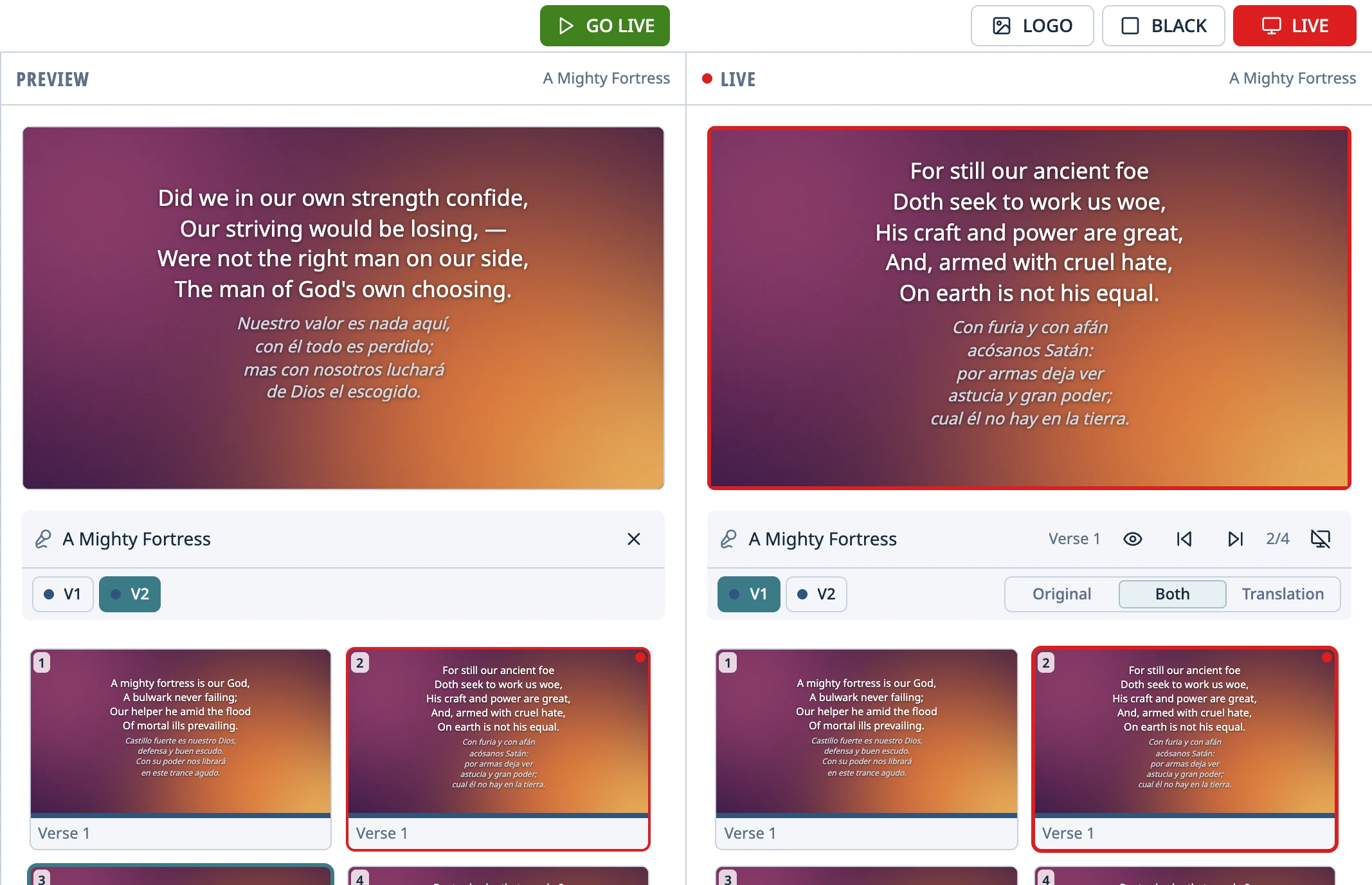
The Songs tab holds your church's song library. The app doesn't include any lyrics, because songs are copyrighted. Each church types in its own, imports them from EasyWorship, OpenLP, OpenLyrics, SongSelect or ChordPro, or reads them from a folder on the computer (how). Themes control how they look (How songs look).
Search and sort
- The search box (Search by title, number, author or lyrics) finds songs by any of those, ignoring accents, and shows the matching bit of the lyrics. It searches the Library or whichever folder you have open.
- Enter puts the first result in Preview. Esc clears the search box and moves out of it, and then Enter again sends the song live.
- Sort by Title (A → Z), Title (Z → A), Number (the hymnal number), Last added first or First added first. The tab remembers your choice.
Type or paste a song
At the bottom of the tab, click + (New song), or select a song and click the pencil (Edit song). The editor opens full screen.
Type the title in the bar at the top of the editor. In the right-hand column, just below the preview, choose its Theme. Further down, under Details, you can fill in the hymnal Number, Authors, Copyright, CCLI number and Notes.
Type or paste the Lyrics in the middle and click Save (or Ctrl + S; ⌘ + S on Mac).
In the Lyrics, a header in brackets starts a new section, and a blank line starts a new slide within the same section:
[Verse 1],[Chorus],[Pre-Chorus],[Bridge],[Ending],[Intro]. Headers also work in Spanish, Italian and Portuguese ([Estrofa 2],[Coro],[Refrão]…) and abbreviated ([V1],[C],[B]).- A header by itself, with no lyrics under it, repeats that section. Putting
[Chorus]again after the second verse brings the chorus back without retyping it. The same header with different lyrics becomes a separate section (“Chorus 2”). - Without headers, each block is a verse, and a block that repeats word for word is the chorus. If you paste lyrics from the web where a block starts with “Chorus” or “Verse 2:”, that line is treated as a header. Write headers adds a header to each section so you can see how the app read the song.
- Anything else in brackets on a line of its own, as long as it isn't a chord, also starts a section, which the app calls “Other”:
[Repeat],[x2]or[Repeat x2]. To keep it as part of the lyrics, start the line with\:\[Repeat x2]. - A slide with more lines than the theme's Max. lines is split up when projected. If the theme doesn't set a limit (the default), a block of more than 40 lines pasted without blank lines is split into slides of four lines.
On the left side of the editor are the slides as they'll look, and on the right is a large view of the selected one. The editor warns you if a slide doesn't fit even at the smallest size. Moving the cursor in the lyrics selects its slide, and clicking a slide moves the cursor to its words.
The editor's ⋯ menu (More actions) has Duplicate and Delete (a song from a folder only has Duplicate). The ✕ closes the editor, and asks first if there are unsaved changes.
Chords
Chords go right in the lyrics, in brackets, where they fall: [G]Amazing [C]grace. Latin notation ([Do], [Rem7], [Si♭/Re]) and [N.C.] work too. Chords show only on the stage screen, above each line; the projector never shows them. A slide can have only chords, like an intro, and the projector then shows just the background.
Warning: With the app in English, a chord alone on a line that's also a section abbreviation is read as a header: [C] is the chorus, [B] the bridge, [E] the ending (also [E7] or [B7]). To make it a chord, start the line with \ (\[C]), write it in Latin notation ([Do]) or put two chords on that line.
The song order
Each song has a single order, which sets when and how many times the chorus is sung. Until you change it, it follows the lyrics. In Order, on the right side of the editor, drag sections around, remove them with × or add them with + (Add a section). In the ⋯ menu (More order options), Type it as text lets you write it out like V1 C V2 C B C, and Follow the lyrics goes back to the order of the lyrics.
- Once you set your own order, editing the lyrics doesn't change it. The editor says “Your own order: changing the lyrics leaves it alone”.
- A section left out of the order isn't projected, but its key or button can still bring it up, outside the order.
- The editor warns you if the order names a section that doesn't exist.
Project a song
Click the song. Its slides appear in Preview, each labeled with its section's name and color.
Click GO LIVE, press Enter or double-click it. It starts on the slide selected in Preview.
Move between slides with → and ← (or the remote), or click them in the grid under the Live monitor. On the last slide, → ends the song. By default it goes off air and the logo shows (other options).
Tip: Every slide in a song uses the same text size, the largest one at which they all fit, so the lyrics never jump in size from one slide to the next.
Jump to a section
| Key | What it does (with a song live) |
|---|---|
| 1 … 9 | Goes to the verse with that number. |
| C | Goes to the chorus. |
| P | Goes to the bridge. |
| F | Goes to the ending. |
| Shift + the key | Goes back to the previous time that section comes up. |
| T | Hides the lyrics and leaves the background up. Press T again to bring them back. |
A key jumps to the next time that section comes up in the order, and → continues from there. If the section doesn't come up again (an unplanned bridge, one more chorus), it goes up anyway and the row says off the order. When it's done, → picks up with the slide after the one you left.
- The section buttons under the Live monitor do the same thing with a click. The pre-chorus and intro have no key, only a button. The “Chorus 2” button goes to that particular chorus, not to the next one.
- The eye icon on the same row (Hide the lyrics (T)) does the same as T. While the lyrics are hidden, the row says Lyrics hidden.
Two languages
In the song editor, the Translation tab holds the lyrics in the second language. Type or paste them the same way, with the same headers ([Verse 1], [Chorus]) and a blank line between slides, so each slide gets matched with its translation. If you paste without headers, it's paired block by block, in order. Write headers in that tab copies the headers from the lyrics.
- Live, both show stacked, with the lyrics on top and the translation underneath, smaller and in italics. The theme sets the size, color and italics (how).
- For a song with a translation, Original, Both and Translation under the Live monitor switch the language instantly, on the same slide. Every song starts on Both.
- A slide with no translation shows only the lyrics.
Songs in the schedule
With a song selected, Add puts it at the end of the schedule, or you can drag it in. The schedule points to the song rather than storing a copy, so if you fix a word, it's fixed in every schedule. Saving a song that's live updates the projector right away, on the same slide.
Something didn't work the way the guide says? Tell us on GitHub what you did, what you expected and what happened, and we'll see whether the app or the guide needs fixing. Report a problem (opens in a new tab)