Project the Bible
Look up a passage by reference or search for a word, pick the verse and click GO LIVE, on its own or side by side with another version.
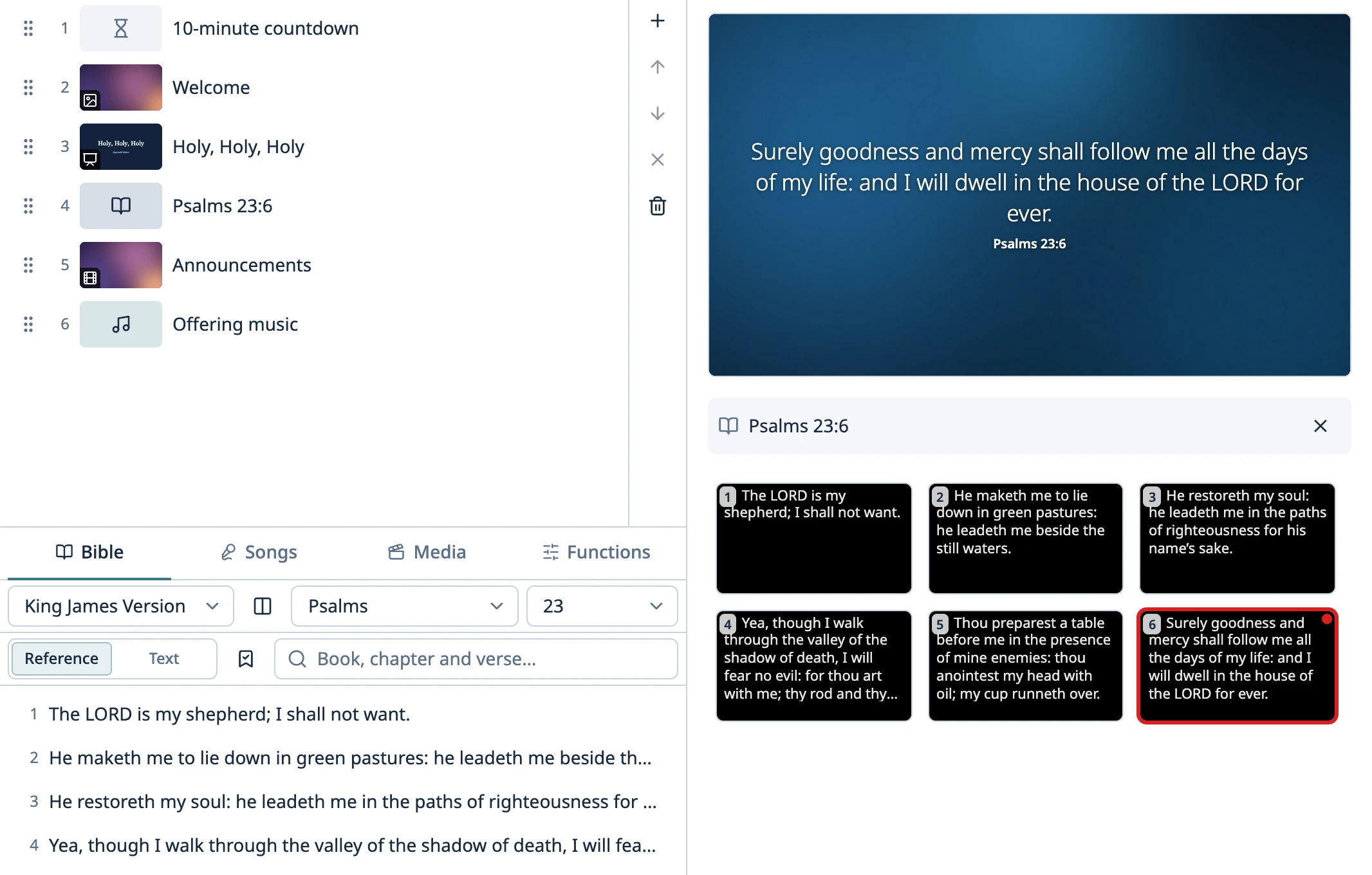
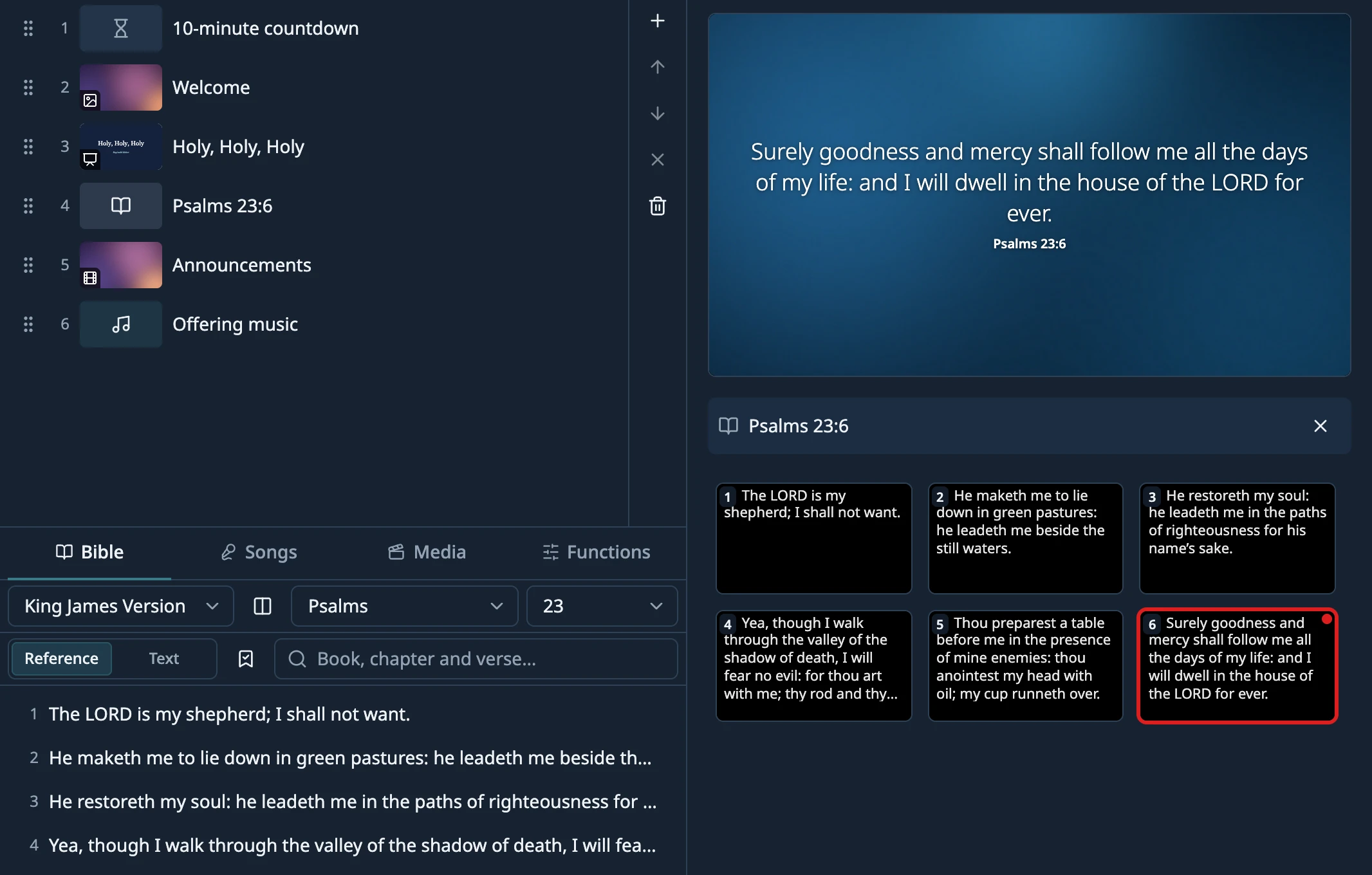
Find a chapter
In the Bible tab, type the book and chapter in the search box (Book, chapter and verse…) and pick from the list by clicking or pressing Enter. You can also use the Book… and Ch… dropdowns, and type in them too: “rev” finds Revelation. If you pick the book with the keyboard, the chapter dropdown opens automatically. Pick the chapter the same way and the cursor jumps to the search box, where typing just a number goes to that verse of the chapter.
- Type the book as a word and the chapter as a number: “john 3”, “acts 2”, “1 john 4”.
- You don't need the full name or accents. “gen 1” finds Genesis 1, and the usual abbreviations work too: “Jn 3”, “Rom 8”, “1 Cor 13”, “Ps 23”.
- Add the verse and it goes straight to Preview: “John 3:16”, “John 3 16”, “Jn 3.16” or “Jn 3,16”. For a range like “John 3:16-18”, you get the first verse.
- If the reference doesn't exist in that version (a verse number past the end of the chapter, for example), you'll see “That passage isn't in this version”.
Tip: Abbreviations follow the app's language, whatever the version. In English, “Jn” is John and “Jon” is Jonah.
Search for a word or phrase
Text, next to the search box, switches to word search (Search text…), and Reference switches back to book and chapter. Type at least three letters. It searches every verse in the selected version, ignoring accents and capitalization, and finds the verses that contain all your words, in any order.
- The last word can be partial: “good shep” finds “the good shepherd”.
- It shows up to 100 results, best matches first. ↓ and ↑ move through them from the search box.
- Click a result to open that chapter with the verse in Preview.
Project a verse
Click the verse. It appears in Preview.
Click GO LIVE or press Enter, or double-click the verse.
Go to the next or previous verse with → and ← (or the remote), or with the Previous and Next arrows on its row under the Live monitor. The row shows which verse you're on (“16/36”) and has its own Take off air.
- Verses go up one at a time.
- The arrows stay within the chapter. After the last verse, look up the next chapter.
- ↓ and ↑ get the next verse ready in Preview without affecting the projector.
Warning: If you open another passage while a verse is live (with the dropdowns, the search box or favorites), the verse stays on screen, but the arrows won't move it anymore. Choose the next verse and click GO LIVE.
If you have versions in more than one language, the version dropdown groups them by language, with the app's language first. Switching versions keeps your place. The chapter and the verse in Preview switch to the new version, and the arrows continue from the live verse using the new text. What's on screen doesn't change until you move to another verse.
Two versions side by side
For a bilingual service, each verse can show alongside a second version. Next to the version dropdown, click the two-column button (Parallel) and choose the other version. None turns it off. Hover over the button to see which version is paired: “Parallel with …”.
- The projector, the monitors and the NDI® output show two columns, each with its reference and, if the verse style includes it, the version name (how it looks).
- It works for verses in the schedule too. Each one shows in its row's version, with the chosen version beside it.
- If the second version doesn't have that verse, only the main one shows. If it numbers the chapter differently (it ends on a different verse), the whole chapter shows in a single column, and the control window explains why.
- The stage screen shows only the main version.
- You need at least two versions installed. With only one, the button is grayed out (how to add another).
Favorites and recent passages
With a verse in Preview, click the star at the bottom (Add to favorites) to save it. Click it again to remove it. Favorites and recent, next to the search box, lists your favorites in Bible order and the passages that went live recently, newest first. Click one to open that chapter with the verse in Preview.
- A passage you went through live, verse by verse, is saved as one entry: “John 3:16-18”.
- Verses that go live from the schedule count too.
- The last 20 are kept, even after you close and reopen the app.
- They open in whichever version you have selected.
Verses in the schedule
With a verse in Preview, Add puts it at the end of the schedule, or you can drag it there. Each row keeps the text, the reference and the version.
- When you select the row, Preview shows the whole chapter with that verse highlighted. Click another verse in that grid to put it in Preview, or double-click it to send it live.
- Once it's live, → and ← move through the chapter, just like a verse from the tab.
- When it goes live, the Bible tab switches to that version and that chapter, unless you have another verse from the tab waiting in Preview.
To change how verses look (font, size, background, reference), click the palette icon at the bottom left (Verse style) and see How verses look. To add another version, see Bible versions.
Something didn't work the way the guide says? Tell us on GitHub what you did, what you expected and what happened, and we'll see whether the app or the guide needs fixing. Report a problem (opens in a new tab)