The stage screen
A screen for the worship team and the preacher with what's live, what's next, the chords and the time, even when the projector is on black.
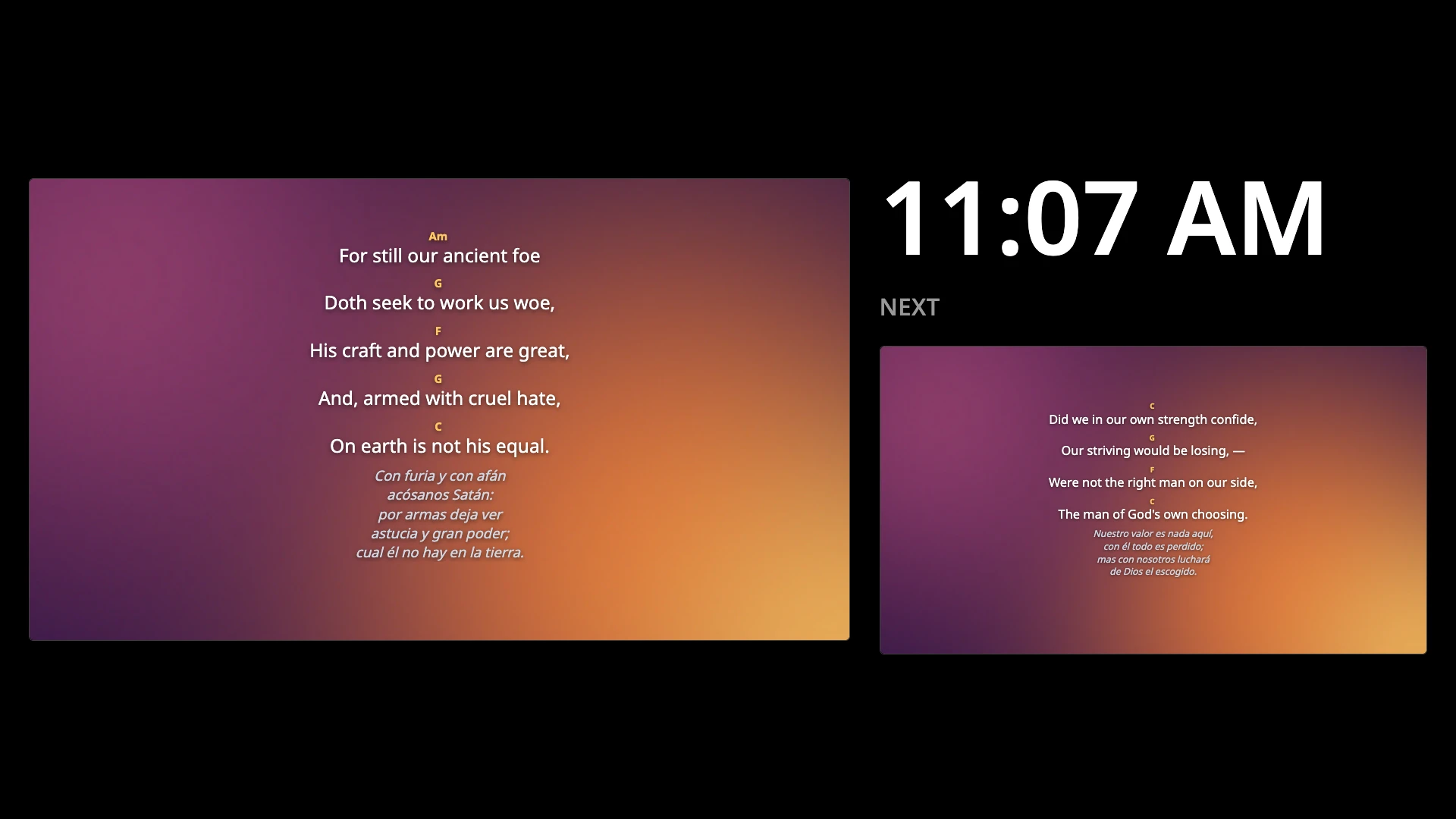
With a third screen (a monitor or TV facing the musicians, often called a confidence monitor), Himnova Live shows what's live, what's next (the next slide, the next part of the song or the next verse) and the time. The congregation doesn't see it.
Turn it on
Connect the musicians' screen and extend the display to it, as with the projector (how).
Open Settings › Projection and, in Stage screen, choose that screen.
It opens right away, and from then on it opens automatically whenever that screen is connected. To turn it off, choose None.
- The projector's screen isn't in the list. The stage screen has to be a different one.
- To try it without a third screen, choose your (control screen). It opens as an 800 × 450 window you can move around.
- If you disconnect that screen, the list says None but remembers your choice, and the stage screen comes back automatically when you reconnect it.
What it shows
- What's live, in large text; what's coming up, under Next; and the time.
- If a song has chords, they show above each line in amber. The projector never shows them (how to write them).
- During BLACK or LOGO, or with the lyrics hidden, it keeps showing the content and says in red, next to the time, what's covering the projector (BLACK, LOGO or LYRICS HIDDEN), so the musicians never lose the words.
- With a verse live, what's next is the following verse in the chapter, as long as the Bible tab stays on that chapter. With two versions side by side, it shows only the main one.
- A video shows as a still image. The stage screen doesn't play anything and has no sound.
- Overlays don't show.
Tip: The presentation remote also works with the stage window in front (how).
Something didn't work the way the guide says? Tell us on GitHub what you did, what you expected and what happened, and we'll see whether the app or the guide needs fixing. Report a problem (opens in a new tab)