Presentations and hymnals
PowerPoint, Impress and PDF files, and hymnals with auto-advance and music: how they open, how to move through them and what carries over.
Himnova Live opens PowerPoint (.ppt, .pps, .pptx, .ppsx, .pptm, .ppsm), Impress (.odp) and PDF presentations on its own, so there's nothing else to install. They're in Media › Presentations, and you add them like any other file (how).
Open a presentation
The first time you open a presentation, the app reads it (“Reading slides…”). That happens only once per file. After that it opens instantly, even if you move it to another folder. If you edit the file, the app reads it again the next time you open it. Presentations showing in the Presentations grid are read automatically in the background. Nothing gets converted; what you project is the original file.
- If you send it live before it's done reading, the projector keeps showing what it had and switches over as soon as it's ready.
- While it's reading, Cancel stops waiting. After that, Retry opens it again.
- If part of a slide is damaged in the file, the app shows whatever it could read and the control window says Damaged slide. The warning doesn't appear on the projector.
Read everything ahead of time
Open Media › Presentations. If you've typed a search, only the matching presentations get prepared.
Click Prepare folder, the layers icon at the bottom. It only appears if some presentations haven't been opened yet.
Confirm with Prepare. The app reads them one at a time in the background while you keep working. At the bottom you'll see “Preparing 3 of 12…” and Cancel.
What carries over and what doesn't
| In the original file | In Himnova Live |
|---|---|
Auto-advance timings (.pps hymnals) | Kept. |
| Music and sounds | They play as they do in PowerPoint. Music for the whole presentation follows the slides, and each sound plays on its own slides. |
| A video inside a slide | Plays if it's embedded, in .pptx, .pptm, .ppsx, .ppsm and .odp. A linked video (one that isn't inside the file) doesn't play, and neither does one in .ppt or .pps. |
| Embedded fonts | Used. If a font is missing, see It looks different. |
| Charts, SmartArt and WordArt | Shown. Warped WordArt shows without the warp and 3D effects without the depth, and charts in an .odp don't appear. |
| Hidden slides | Not shown. |
| Speaker notes | Not shown. |
| Transitions | Played when moving forward. Fade, fade through black and random bars look as they do in PowerPoint, and the rest play as a fade of the same length. Going back is a straight cut. The change into the presentation uses the Transition in Settings › Projection. |
| Object animations | Not played. Each slide appears all at once. |
| No auto-advance or transitions. |
Move through the slides
- GO LIVE starts on the slide selected in Preview.
- Use → and ← (or the remote), or the Previous and Next arrows on its row under the Live monitor.
- Clicking a slide in the Live grid jumps straight to it.
- Double-click a slide in Preview to send the presentation live from that slide. If it's already live, the projector jumps to that slide.
- On the last slide, → or Next ends it. By default it goes off air and the logo shows. When a presentation ends changes that (the options).
Under Live
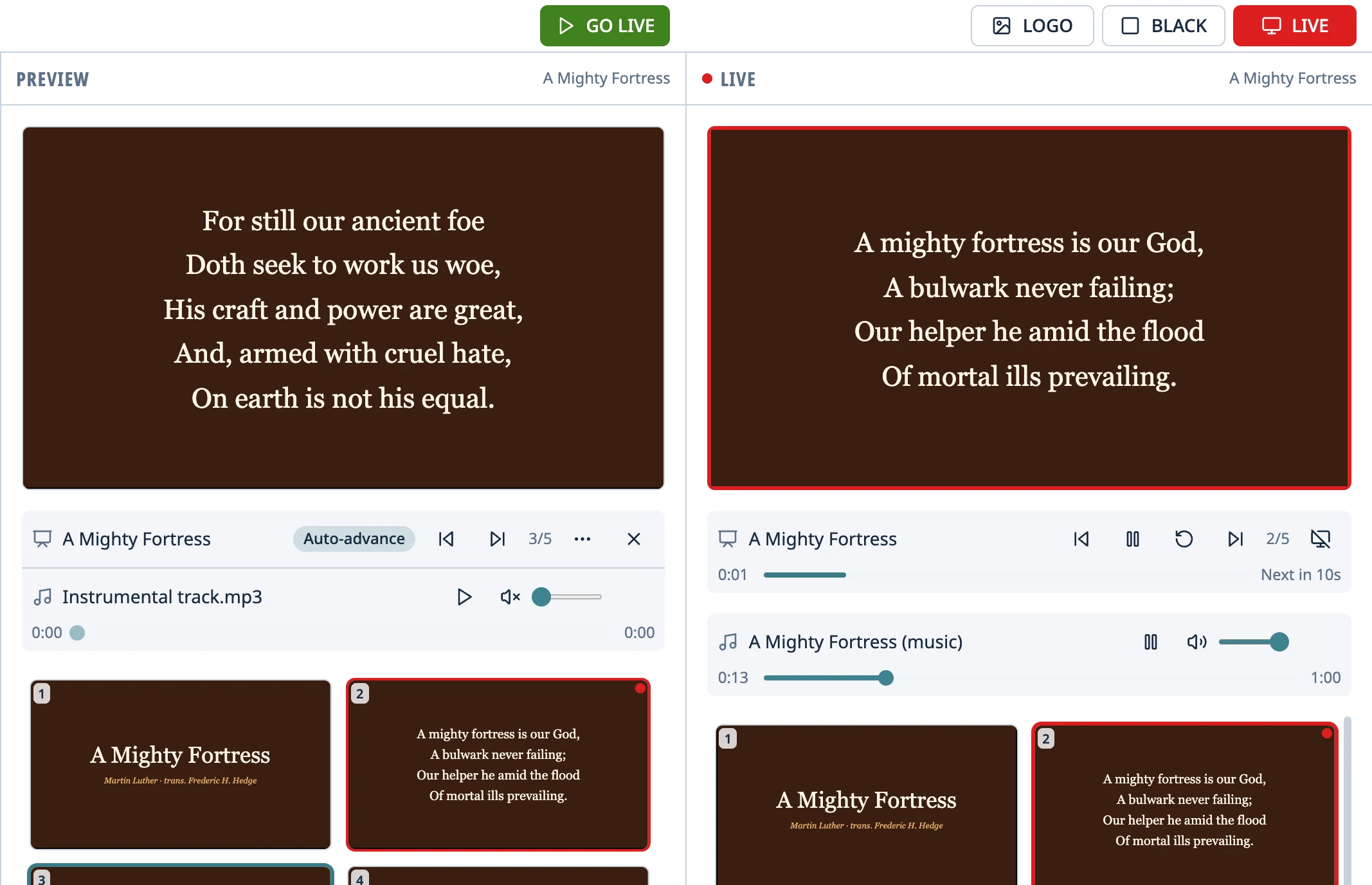
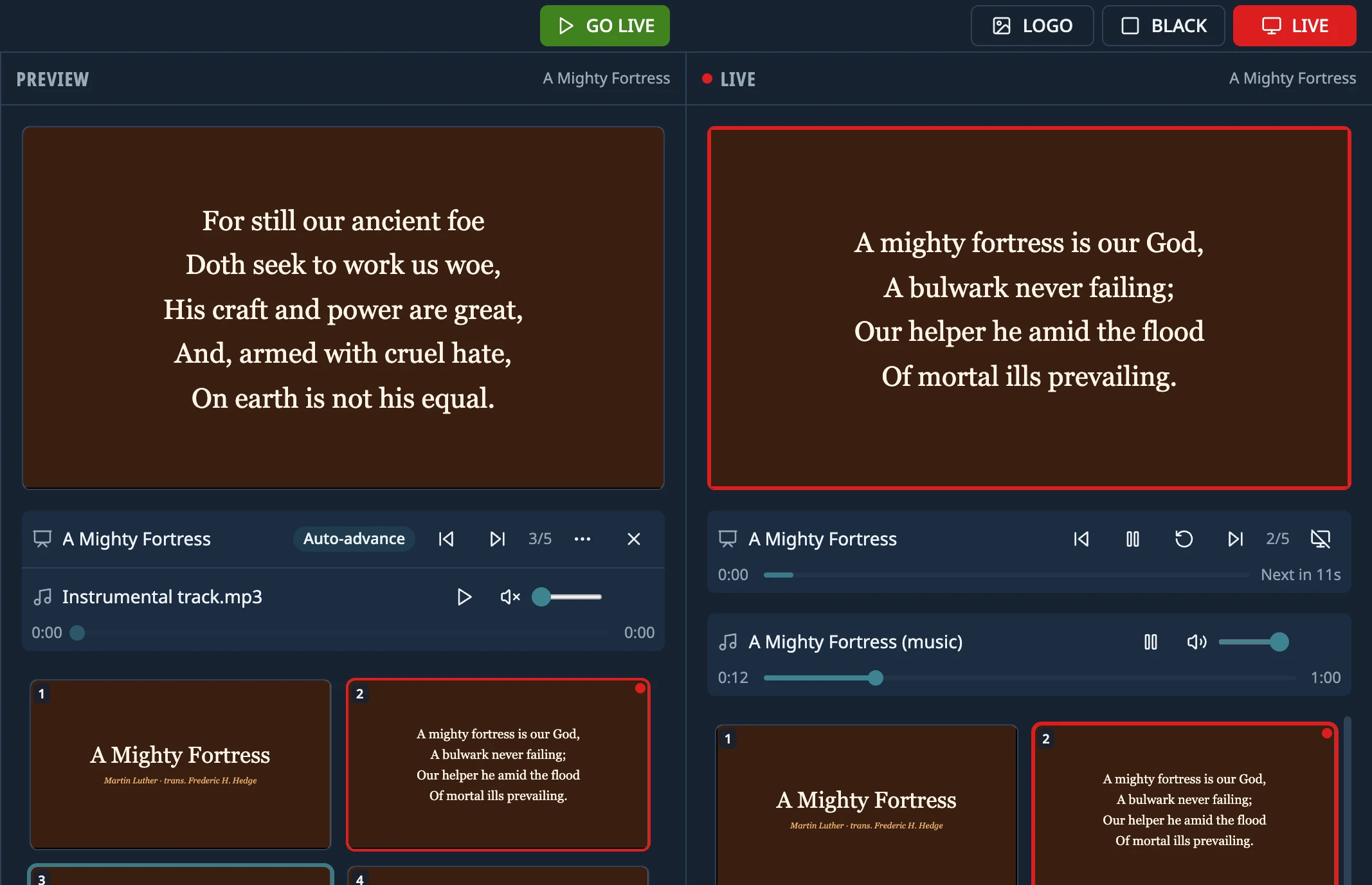
- The presentation's row shows which slide it's on (“3/12”) and, if it auto-advances with music, how long until the next one (“Next in 8s”). If you moved it by hand, Resync puts it back in time with the music. Its Take off air takes it off the projector.
- The music has its own row, “… (music)”, with volume, a bar and pause. If it's too loud, turn it down there. It starts at the Starting volume set in Settings › Projection.
- A video in a slide gets its own row too, “… (slide video)”, with Pause, Restart, a bar and volume. Pausing it doesn't pause the presentation.
Auto-advance and music
If the presentation has timings, Auto-advance appears under Preview, and once it's live it advances on its own. If it has music, the slides follow the music. In Preview it never advances, and you can listen to its music from its row at its own volume.
- Space, or Pause and Play on its bar, stop and resume auto-advance (and the music).
- Restart goes back to the first slide and starts the music over. With BLACK or LOGO on, it only rewinds, and the music stays paused until you show the presentation again.
- If you change slides by hand, auto-advance continues from there. Resync jumps back to the slide that matches the music.
- BLACK and LOGO pause the music, and if the presentation has music, auto-advance pauses too. When you come back, it picks up where it left off. Without music, auto-advance keeps running underneath.
- When the last slide or the music ends, the presentation does whatever When a presentation ends says. By default, it goes off air and the logo shows. A presentation without timings never ends on its own.
Add music to a presentation
If the presentation has no music of its own, the first time the app reads it, it looks for an audio file with the same name in the same folder. If you copy one there later, or want a different one, pick it yourself: on the presentation's bar under Preview, click Add audio (any **Audio** format works). Later, the ⋯ menu (Audio options) lets you Change or Remove it. Music embedded in the file can't be changed.
If something doesn't work, see A presentation won't open or looks different.
Something didn't work the way the guide says? Tell us on GitHub what you did, what you expected and what happened, and we'll see whether the app or the guide needs fixing. Report a problem (opens in a new tab)