Himnova Live puts hymns, songs, the Bible, slides and videos up on the screen at church. Everything lands in preview first and only goes live when you say so.
A typical order of service, and what you do in Himnova Live at each point.
1–2
Before it starts
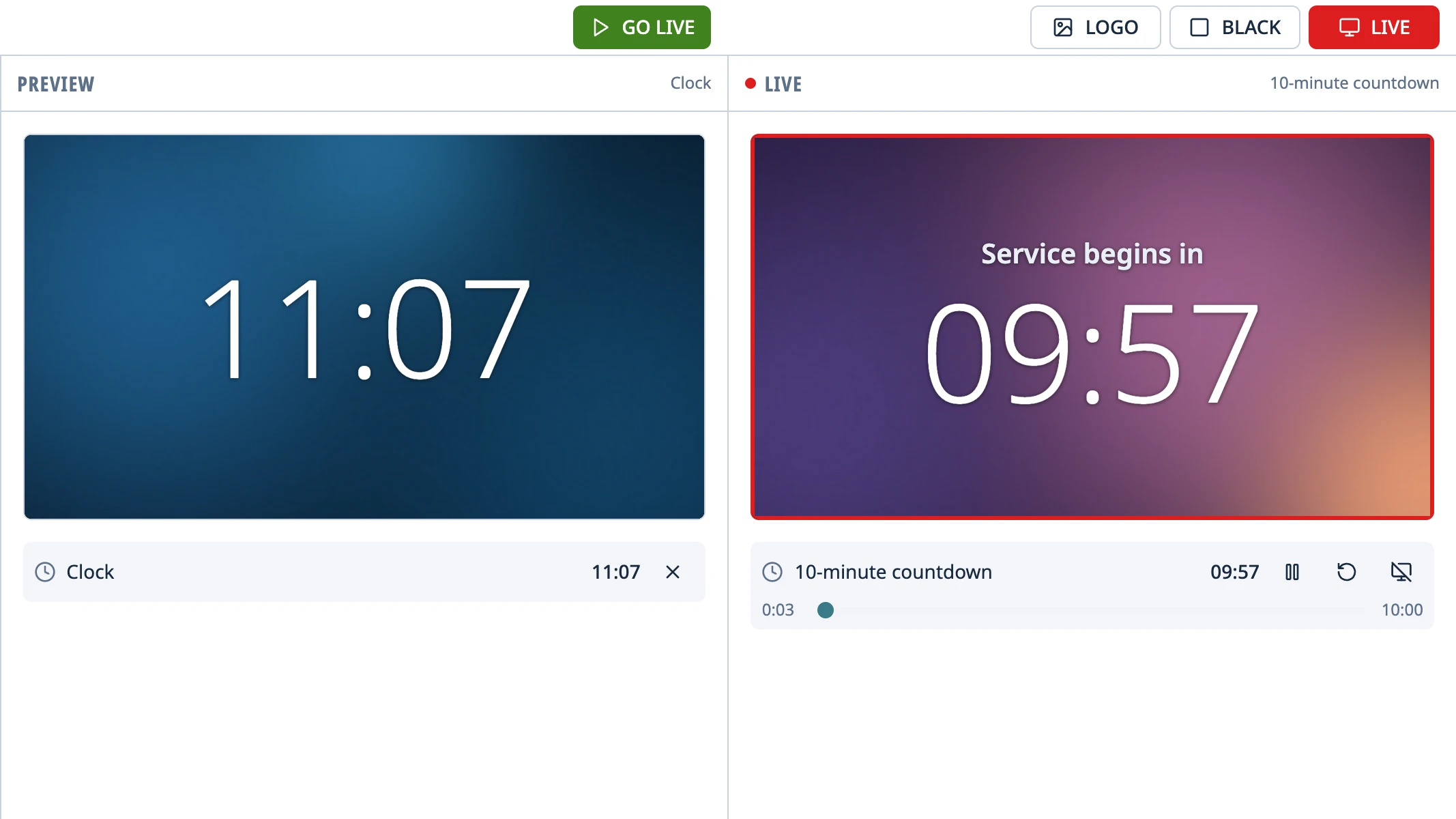
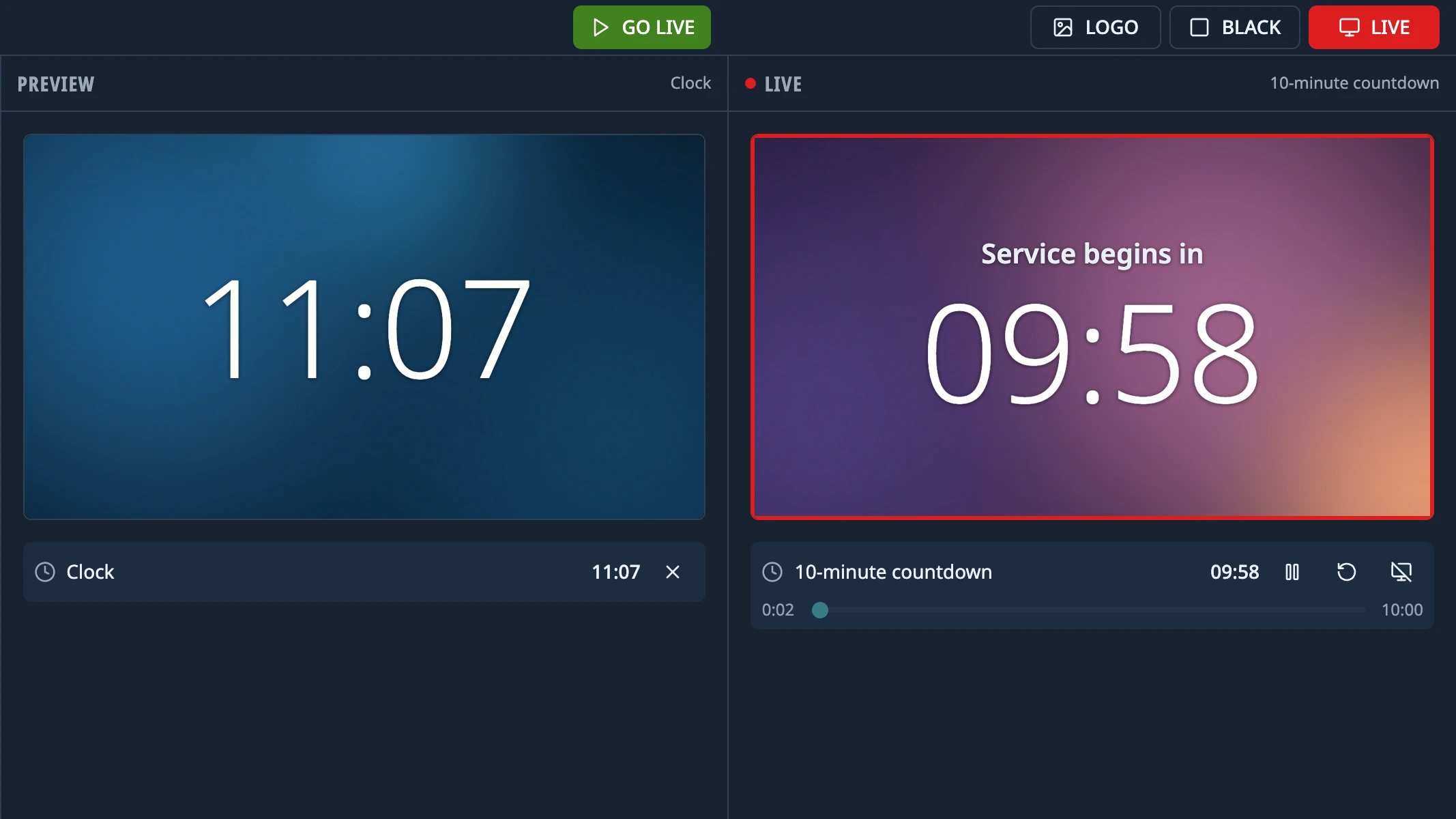
While people come in, put up a countdown to the start of the service, a clock or a stopwatch. On top of whatever's on screen you can add overlays, like the preacher's name or the church logo. You'll find both in the Functions tab.
The countdown, live. “10-minute countdown”, with its controls.
3
The hymns
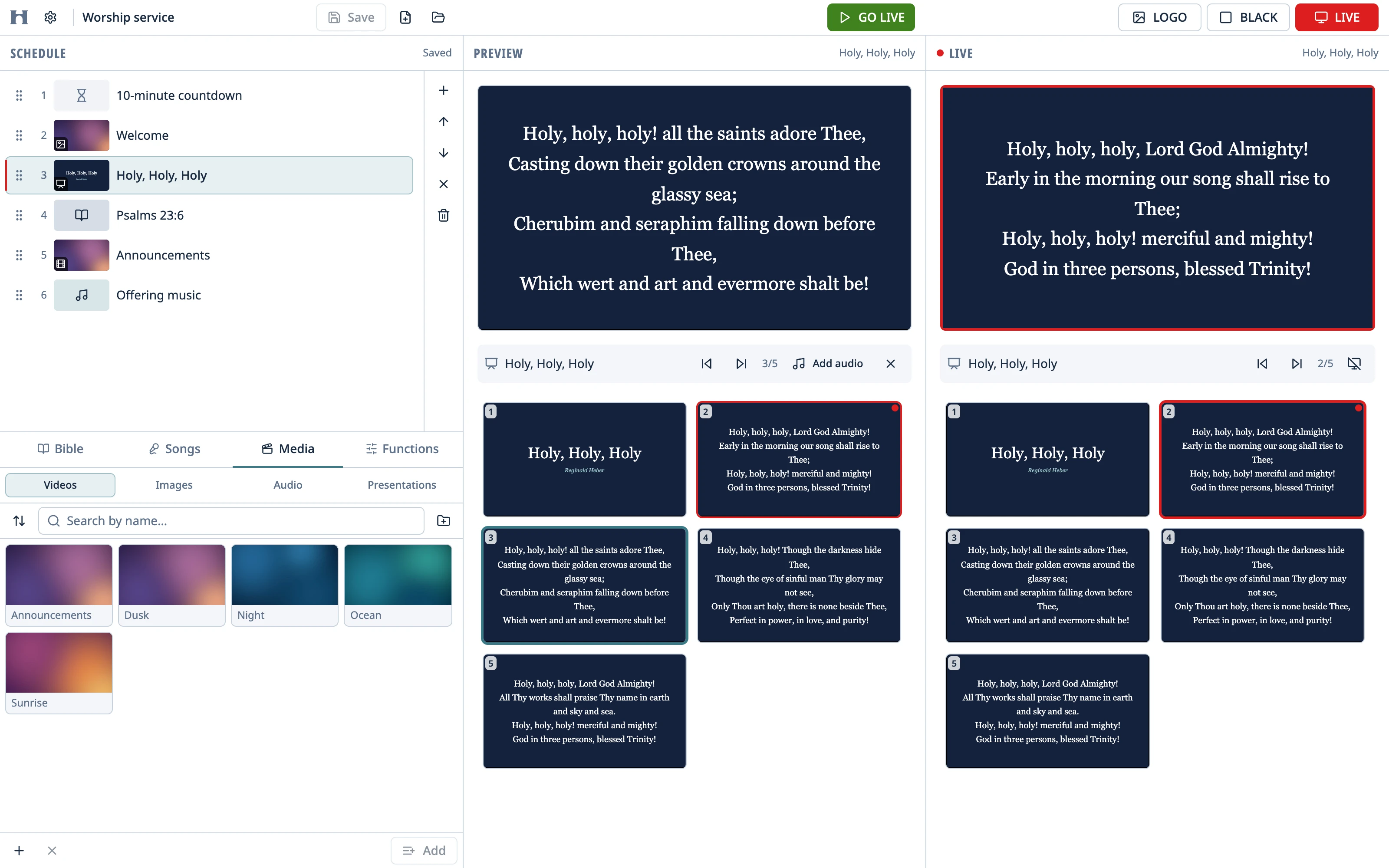
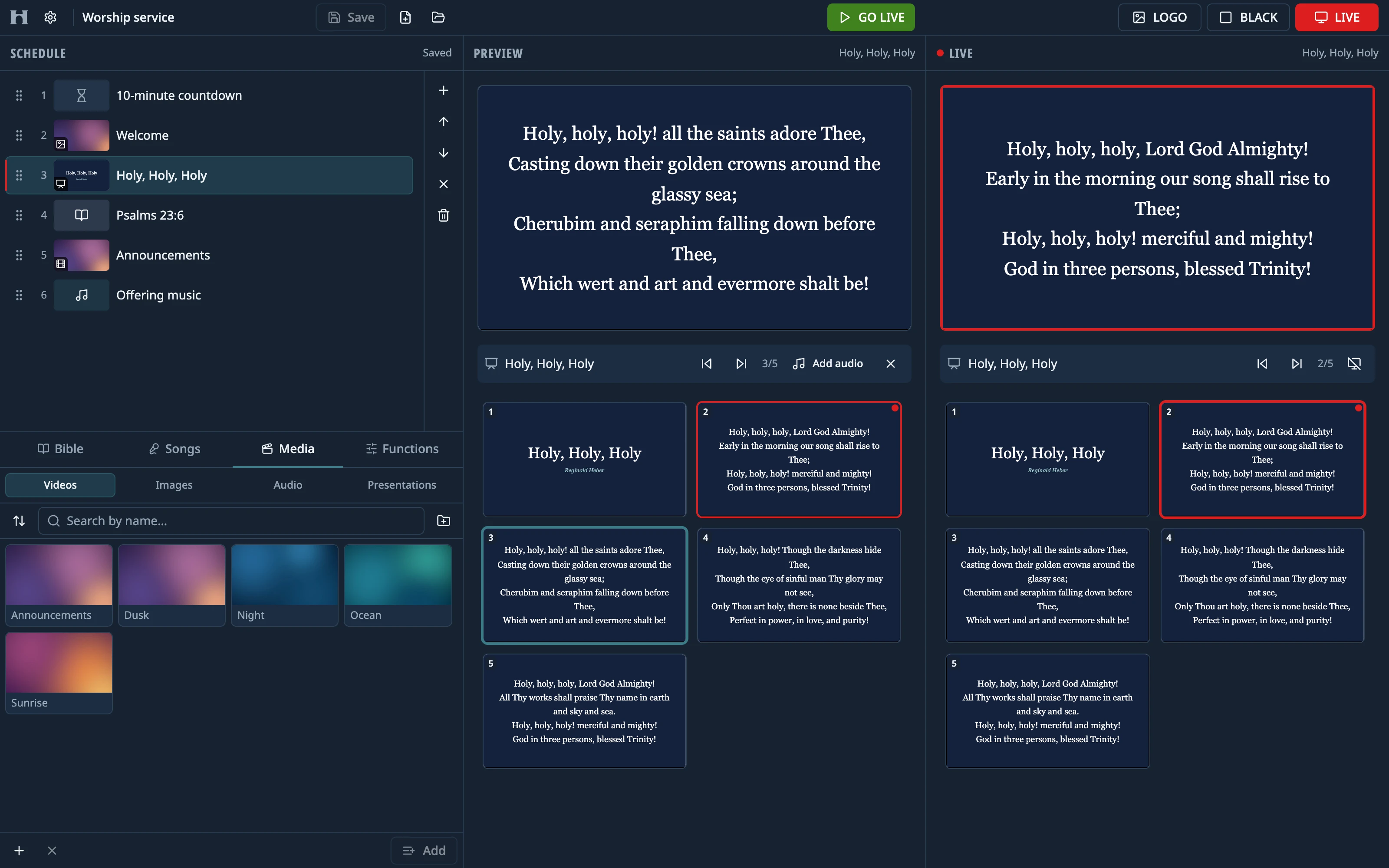
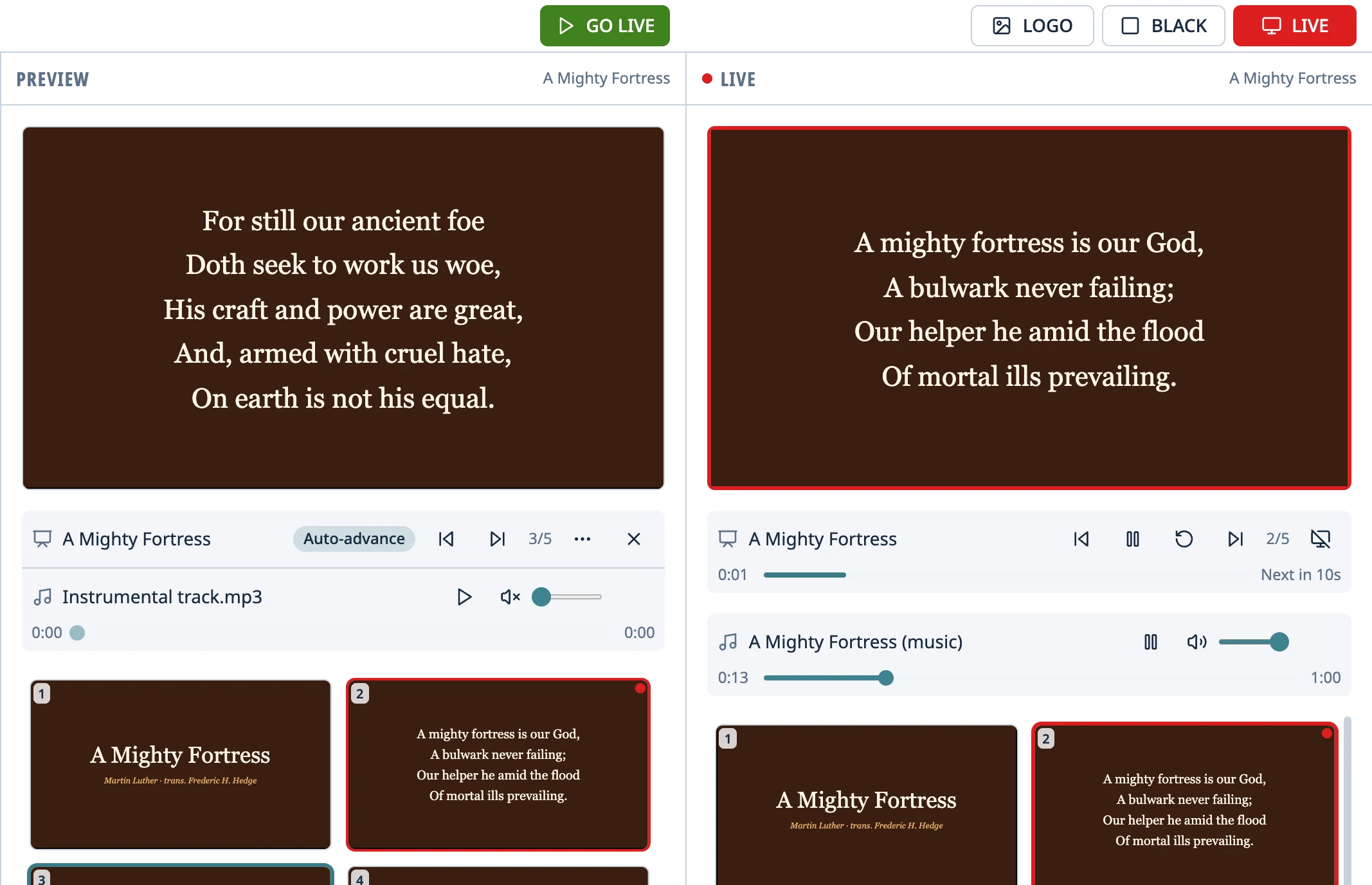
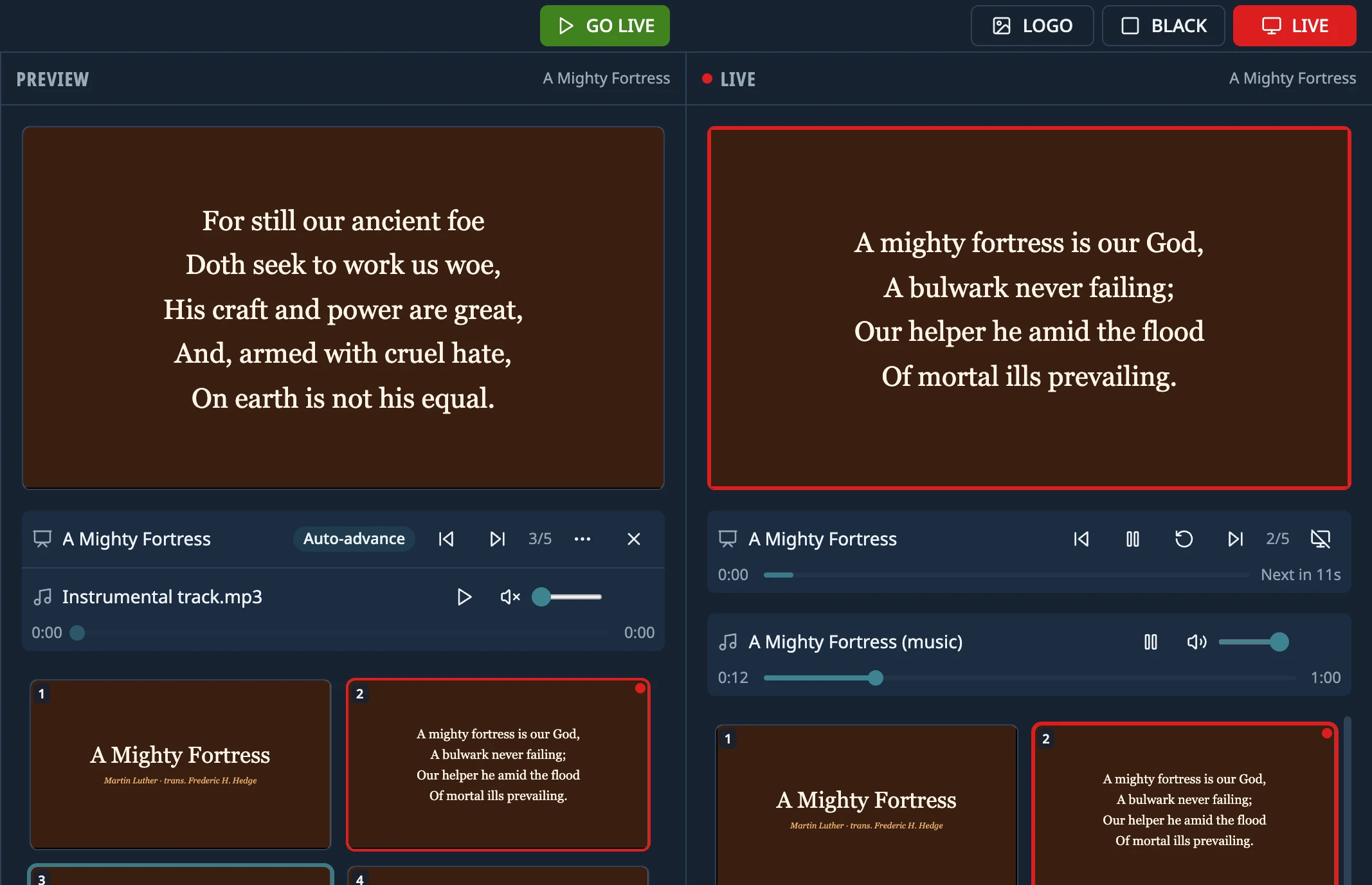
Open the PowerPoint hymnal you've always used, even on a computer without PowerPoint, and it looks the way you built it. The .pps files that advance on their own keep each slide's timing and play their music.
A .pps hymnal, live. With its music track and the countdown to the next slide.
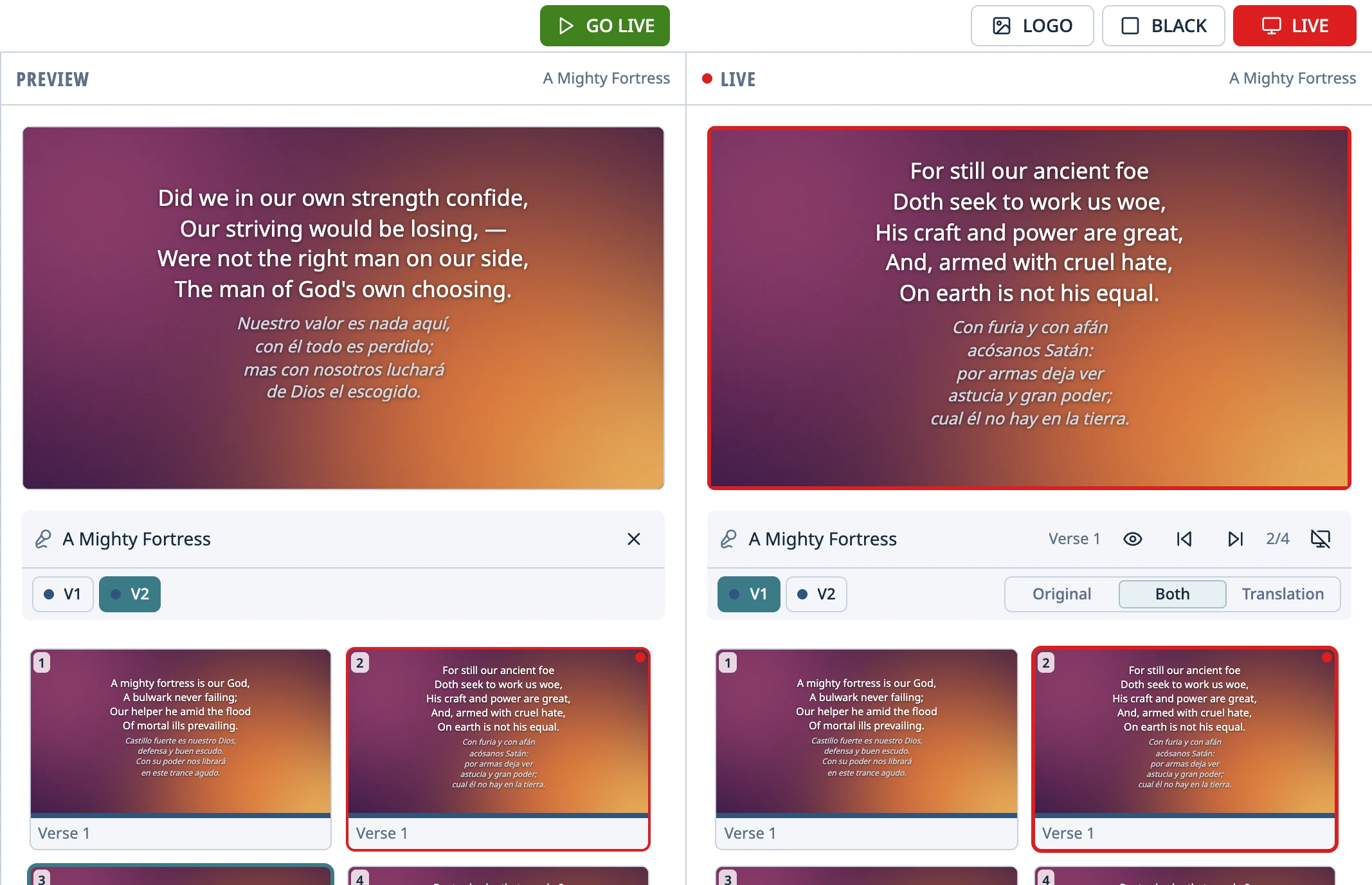
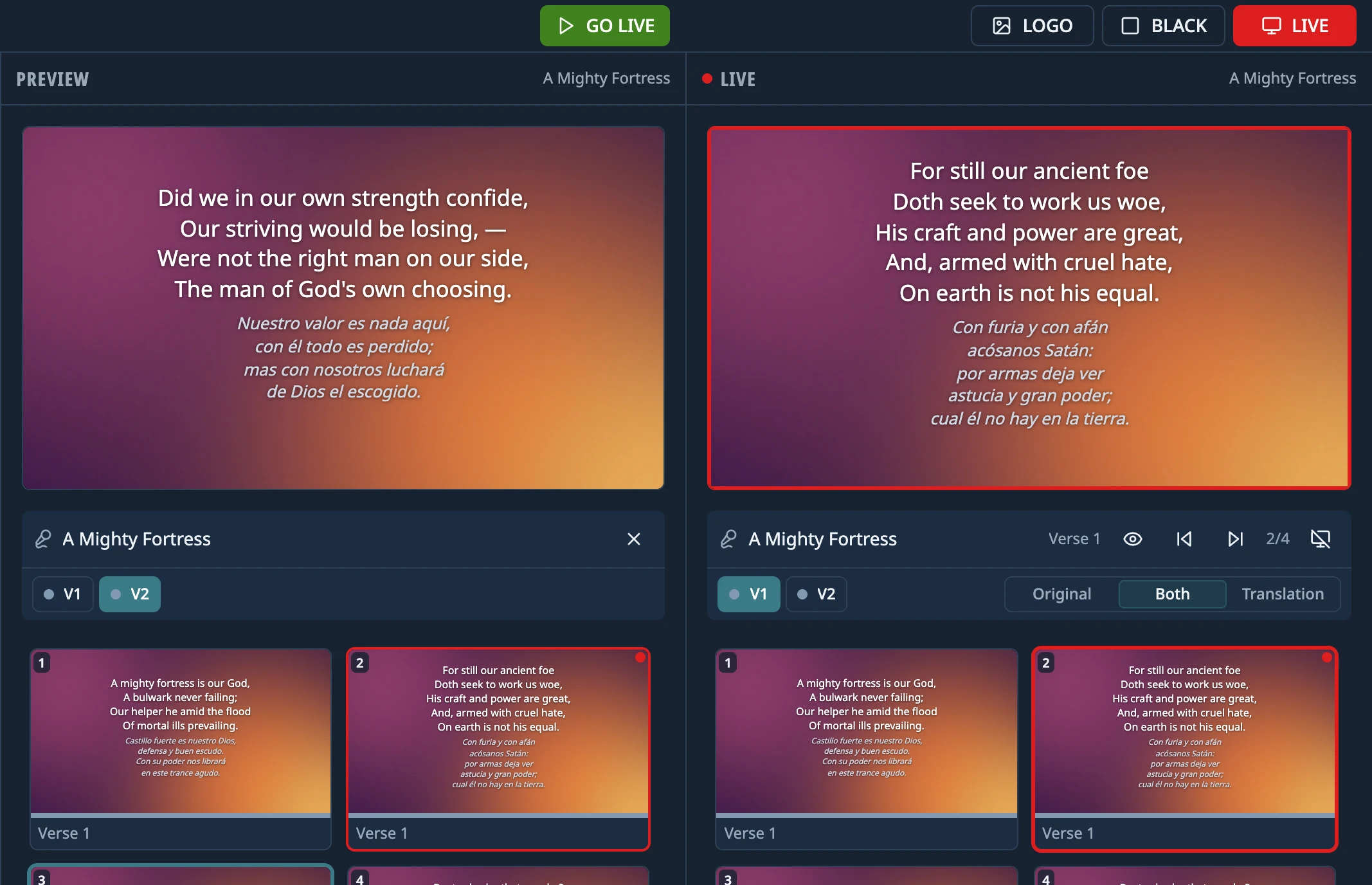
Paste a song's lyrics and the app builds the slides, with the words the same size on every one. If the band goes back to the chorus, press C and you're there. A song can also carry its translation under the lyrics.
A song in two languages. Live, you pick Original, Both or Translation.
Opens
PowerPoint (.ppt, .pptx, .pps, .ppsx), Impress (.odp) and PDF
Imports songs from
EasyWorship 6, OpenLP, OpenLyrics, SongSelect (.txt) and ChordPro
4
The Scripture reading
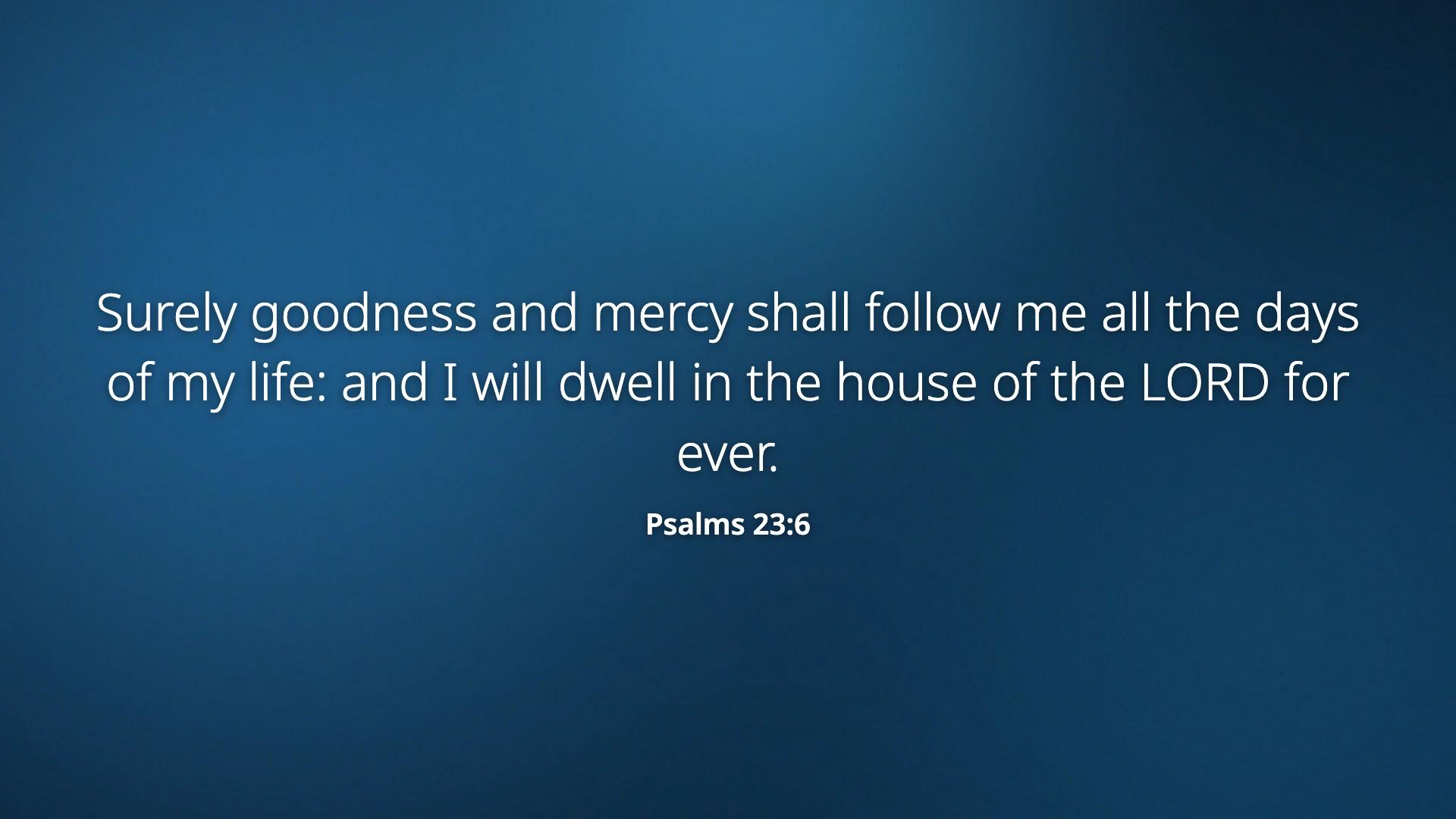
What the congregation sees. Psalms 23:6, with its reference.
Type “John 3:16” or search for a phrase (accents optional) and pick the verse. For a bilingual service, two versions can sit side by side.
Bibles included
Español
Reina-Valera 1909, Versión Biblia Libre
English
King James Version, American Standard Version, World English Bible
Italiano
Riveduta 1927, Diodati 1885
Português
Almeida 1911, Bíblia Livre
The ones in the app's language come installed, and you add the rest with one click, no internet needed. If you use another version and have it as a file (a MySword or MyBible module, say), you can import it.
5–6
Announcements, videos and music
You'll find the announcements video, this week's photos and the offering music in the library, which already includes the computer's Videos, Pictures and Music folders. Any video or audio file plays just as you got it, and you check each one in preview before it goes live.
In Settings you choose, once, what happens when something ends. When the announcements video is over, the projector can show the logo, go black, loop the video, hold the last frame or move on to the next item in the schedule. The offering music stops, loops or plays the next audio in the schedule.
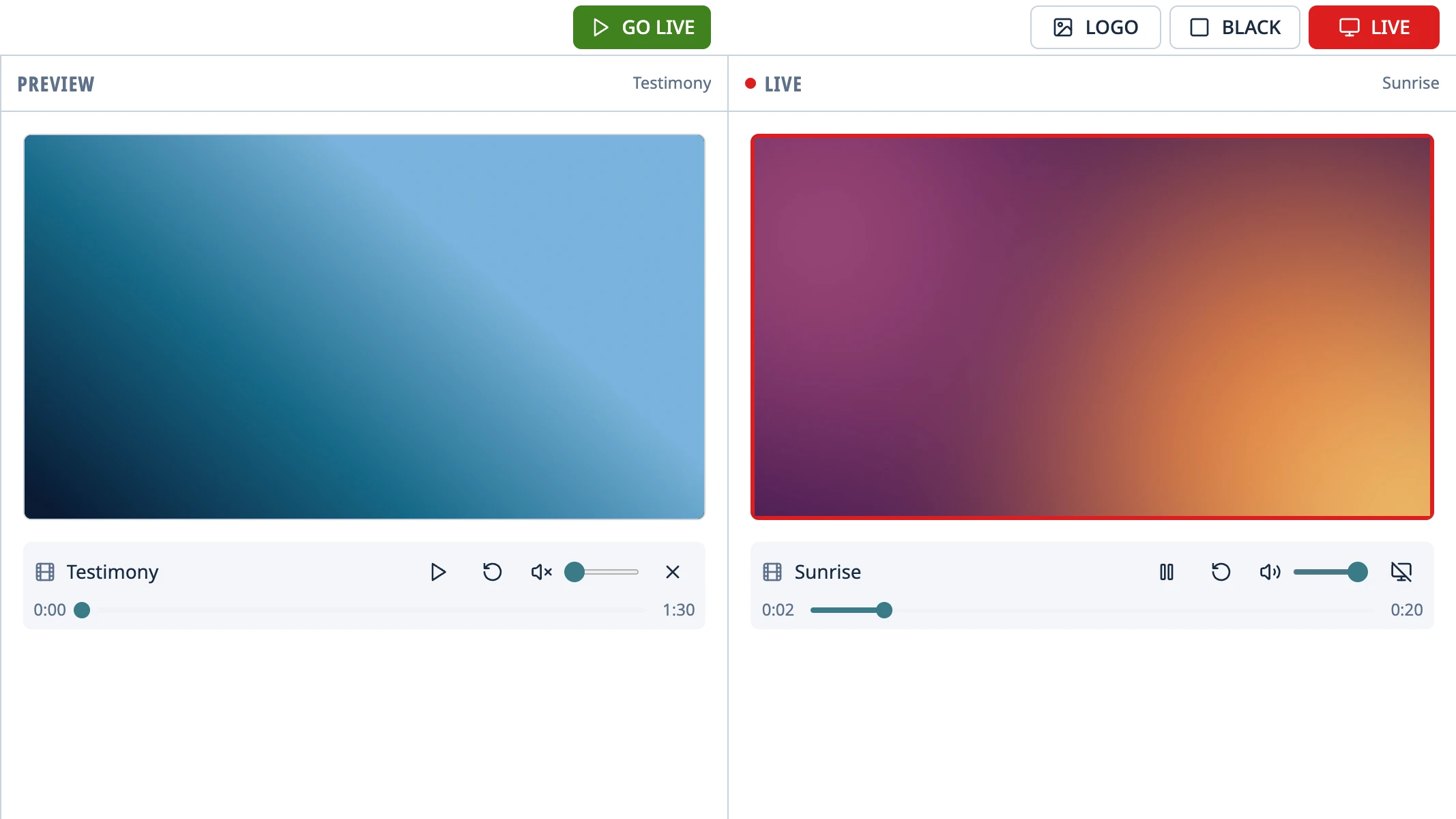
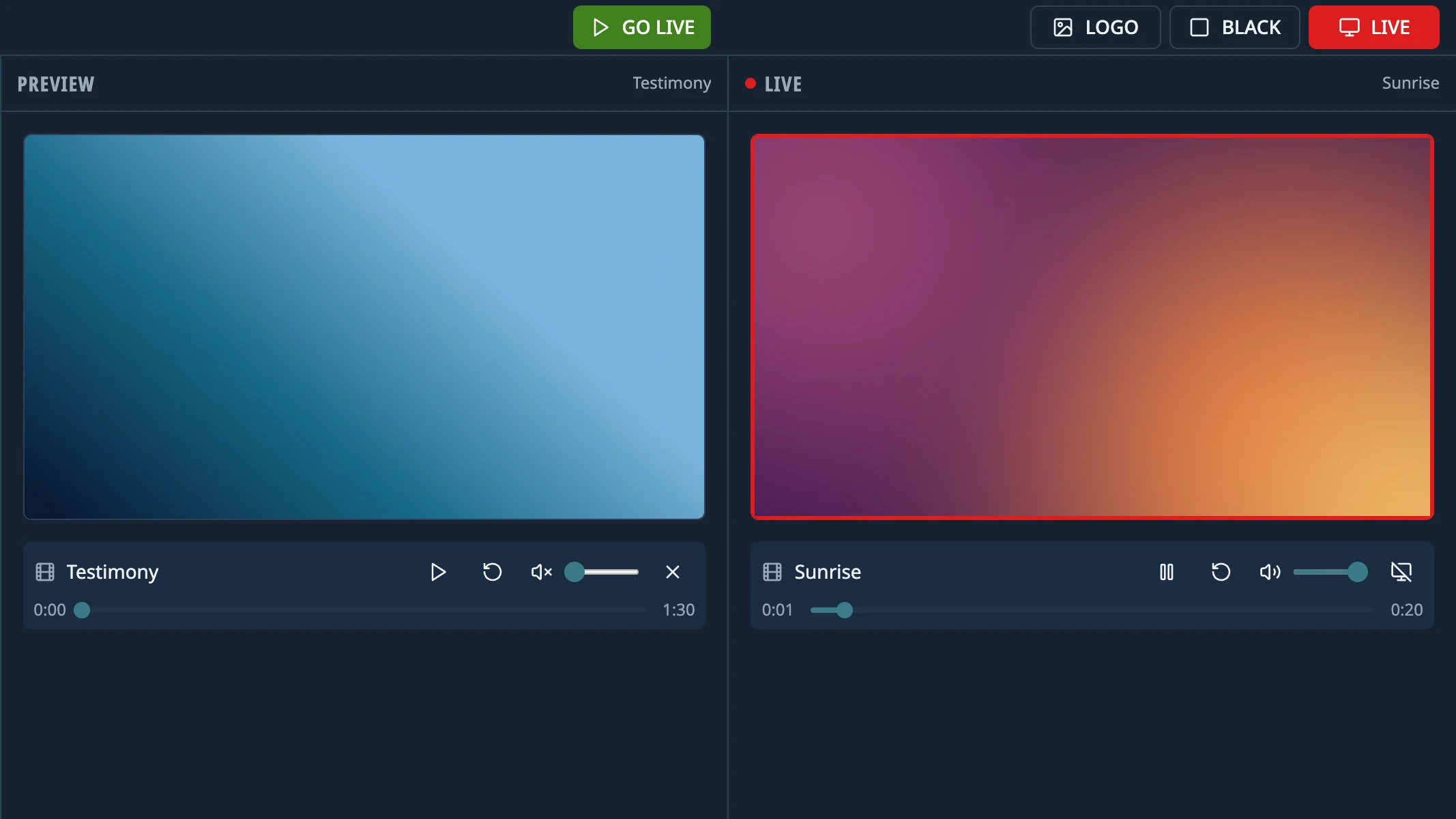
One video live, another in preview. While one plays on the projector, the next one waits its turn.
One computer, three screens
The projector for the congregation, a stage screen for the musicians and, over the network, the livestream.
The computer in the booth
video output
video output
Projector
What the congregation sees.
video output
video output
Stage screen
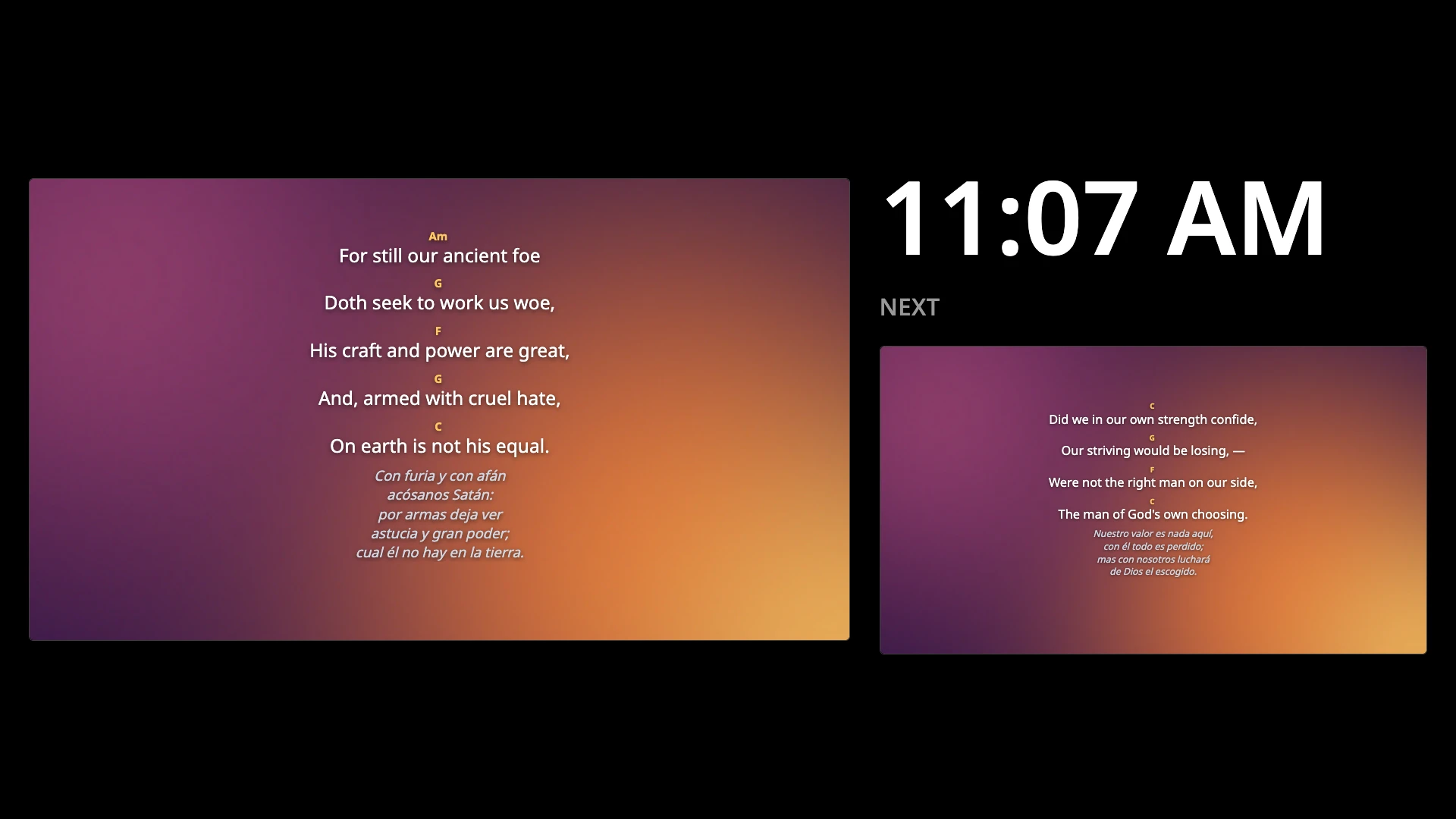
What's live, what's next, the time, and the song's chords, which never show on the projector.
local network, NDI®
local network, NDI®
OBS, vMix or another program
Your livestream gets the lyrics and slides, with the sound of the videos and hymns. Turn it on in Settings › Projection with Send over NDI®.
To stream, you'll need NDI installed (it's free).
If something goes wrong mid-service
The projector drops out
The picture comes back by itself when it reconnects.
The schedule saves itself
You don't have to remember to save it.
BLACK and LOGO
They cover the screen; the video pauses and, when you come back, picks up where it was.
Closing by accident
Close the app by mistake and it asks first. So does an update that needs a restart while something is on the projector.
Works offline
If the internet drops mid-service, nothing changes: everything is on the computer.
Updates never show on the projector
The notice about a new version shows up only in the control window, and nothing downloads until you say so.
Nothing. Himnova Live is free software, and you can install it on every computer at your church. There are no licenses or subscriptions to pay for, and no account to create.
Is it like EasyWorship?
Yes, in the way it works. As in EasyWorship, you pick something, check it in preview and only then send it live. You can also import your songs from EasyWorship 6's database.
Why is it free?
Because it's free software. Its license, the GPL-3.0, lets anyone use it, study it, change it and share it. It has no ads and no accounts, and it sends nothing about you or your church. If it's useful to you, you can support it with a donation.
Do I need PowerPoint?
No. PowerPoint (.ppt, .pptx, .pps, .ppsx), Impress (.odp) and PDF files, hymnals included, open in Himnova Live even if the computer has no PowerPoint or any other program.
Does it work offline?
Yes, and there's no account to create. If the connection drops mid-service, nothing happens. When it's online, it checks for a new version as it opens, without sending anything about you, and you can turn that off in Settings › About.
Which Bible versions are included?
Nine, all public domain or freely licensed: the King James Version, the American Standard Version and the World English Bible in English, and six more in Spanish, Italian and Portuguese. A new install comes with the ones in the app's language, and the rest install with one click, no internet needed. You can import any other version from a file (JSON, Zefania, USFX, OSIS, or a MyBible or MySword module) in a moment.
Can I use it to stream the service?
Yes. Over the church network, OBS, vMix or any program that receives NDI® gets what the congregation sees, with no capture card. That's the lyrics, the slides and the sound of the videos and hymns, and you can turn the sound off if your stream takes it from the soundboard. Install NDI (it's free) and turn it on in Settings › Projection.
“Windows protected your PC”: is it safe?
Yes. Windows says so because the installers aren't signed yet; the code is public for anyone to review. On Windows: “More info” › “Run anyway”. On macOS: System Settings › Privacy & Security › “Open Anyway”.
What languages does it come in?
Spanish, English, Italian and Portuguese. It starts in your computer's language the first time, and you can switch any time in Settings › System. Translations into other languages are welcome.
How do I report a bug or help out?
On GitHub. Tell us what you did, what you expected and what happened, or, if a word is mistranslated, what it should say. Both forms are at the bottom of this page, and if you code, the contributing guide is in the repository.
Support the project
Himnova Live is free and has no ads. If your church gets good use out of it, a donation helps keep it going and getting better.
GitHub Sponsors
In dollars, by card, from any country. It takes a GitHub account.